The Samsung Galaxy S10 is the phone that defined a generation. Released in February 2019 alongside the S10e and S10+, it occupied the sweet spot of the lineup: a 6.1″ curved Dynamic AMOLED display with an in-display ultrasonic fingerprint sensor, a triple rear camera system, 8GB of RAM, and a USB 3.1 Gen 2 port that made it — quietly, without much fanfare — one of the most capable DeX workstations Samsung had released at that point.
I’m Yanis, founder of MiraLab. I’ve been tracking the Samsung DeX ecosystem since the S8 days, and the S10 occupies an interesting place in that history. It wasn’t the first phone to run DeX, and it wasn’t the most powerful. But it hit a combination of specs, software maturity, and price point that made it a genuinely compelling mobile workstation — one that still holds up better than people expect in 2026.
Samsung DeX on the Galaxy S10: What the 2019 Standard Flagship Actually Delivered
By the time the S10 launched, Samsung DeX was no longer an experiment. The S8 and S9 generations had established the platform; the S10 refined it. The difference between DeX on an S9 and DeX on an S10 is real and noticeable:
- USB 3.1 Gen 2 — a meaningful upgrade — Unlike the S10e, which shipped with USB 3.1 Gen 1, the standard S10 includes Gen 2. The practical difference for DeX users: when you’re driving an external display via DisplayPort Alt Mode while simultaneously transferring files over the same cable, Gen 2’s 10 Gbps bandwidth means you don’t have to choose between display quality and data throughput. For most users this is a non-issue, but for anyone running a genuine mobile workstation it matters.
- 8GB of RAM across the board — The S10 shipped with 8GB regardless of storage tier. That’s 2GB more than the S10e’s base configuration and gives DeX noticeably more breathing room. Running a browser with fifteen tabs, a PDF open in Adobe Acrobat, Slack, and a music app in the background stops being a performance gamble and becomes a reliable daily workflow.
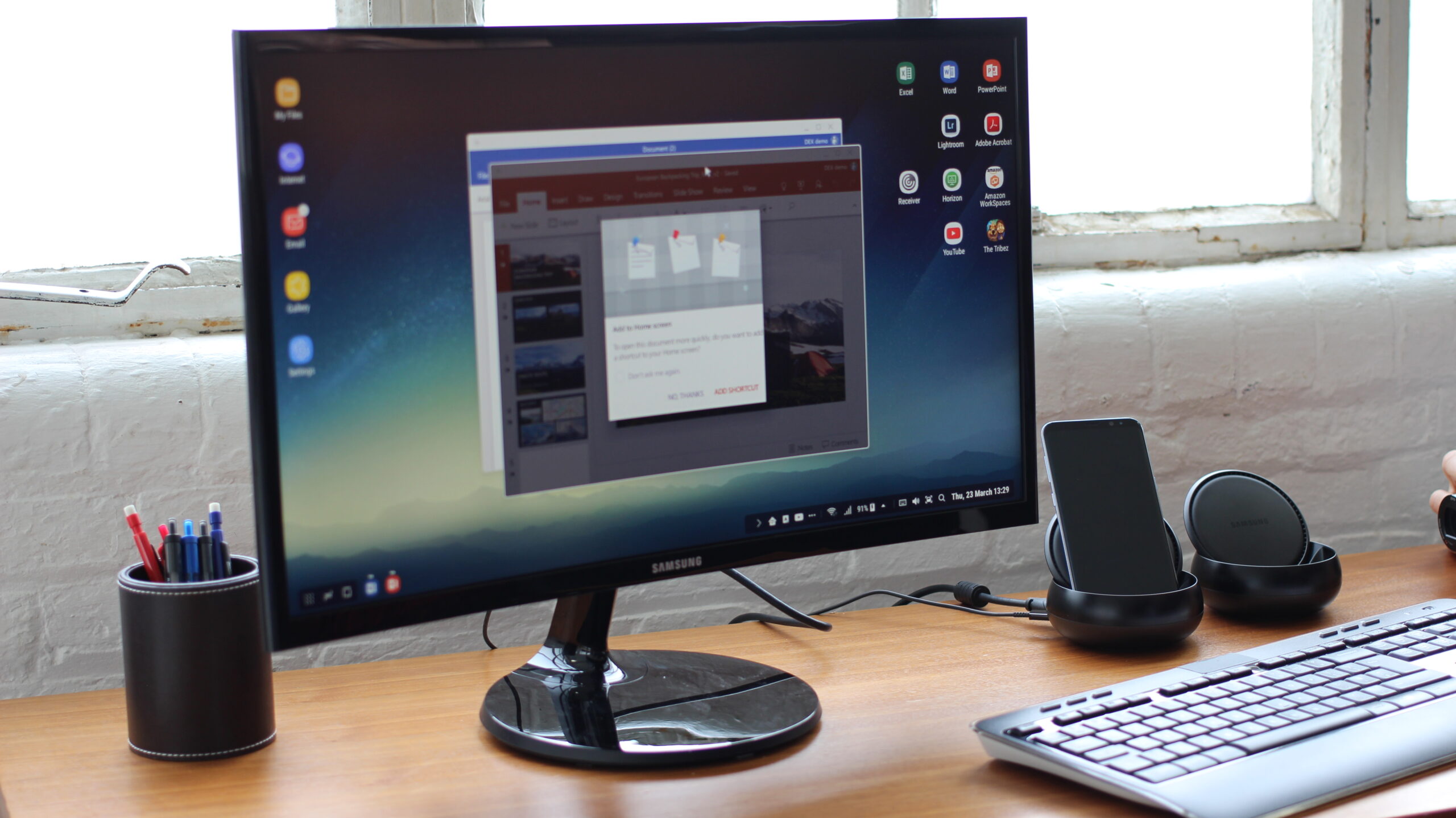
- Refined One UI desktop experience — One UI 1.0 brought a cleaner, more Windows-like DeX interface than the TouchWiz-derived version on the S8 and S9. Window management, taskbar behavior, and the app drawer all improved. If you’ve only seen DeX on older Samsung hardware, trying it on an S10 still running its final Android 12 build is a noticeably better experience.
- Wireless DeX added via One UI 2.0 — The S10 picked up Wireless DeX with the Android 10 / One UI 2.0 update in early 2020. Connect to a compatible Samsung Smart TV (2019 or later) over Wi-Fi, pair a Bluetooth keyboard and mouse, and you get a cable-free desktop. Latency is acceptable for document work and web browsing; it’s not a gaming setup. But for a hotel room or a meeting room with the right TV, it’s genuinely convenient.
- Triple camera as a workstation asset — DeX is a work platform, and the S10’s triple camera — wide, ultrawide, and 2x telephoto — is a document scanner, video call camera, and presentation tool in one. Scanning a whiteboard after a meeting and dropping it into a DeX window is a workflow that just works.
One honest limitation: Android 12 is the final OS the S10 ever received, and security patches ended in 2023. The hardware can handle more, but Samsung’s support window closed. That’s not a reason to avoid it if you already own one — it’s context to set your expectations with.
For a broader picture of how Samsung DeX has evolved and how the S10 fits into the story, my piece on Samsung DeX vs Android Desktop Mode lays out the full landscape across platforms and generations.
How to Use the Galaxy S10 with a Lapdock
A lapdock turns the S10 into a laptop without buying a laptop. One USB-C cable handles video out, keyboard, trackpad, and power delivery simultaneously. DeX launches automatically when the connection is established.
Option 1: USB-C lapdock with DisplayPort Alt Mode (the cleanest setup)
The S10 supports DisplayPort Alt Mode natively. Plug it into a compatible lapdock and the DeX desktop appears on the lapdock screen within a few seconds. The phone screen can continue running Android independently — use it as a media controller, a second screen for a chat app, or simply leave it face-down and use the lapdock’s display as your only screen. The lapdock collection at mobile-only.com lists compatibility per model, which is worth checking: not all lapdocks negotiate the USB-C Alt Mode handshake identically, and confirmed S10 compatibility saves a frustrating return experience.
Option 2: USB-C hub or DeX dock for a desk setup
For a fixed workstation, a USB-C hub with HDMI output connects the S10 to any monitor. Add a Bluetooth keyboard and mouse, and you have a proper desktop. The Samsung DeX dock selection at mobile-only.com includes hub options tested with the S10 series — a useful filter given that generic hubs sometimes struggle with DeX’s power delivery requirements.
Option 3: Wireless DeX on a compatible Samsung TV
Open the DeX app on the S10, select a compatible Smart TV from the list, and the desktop appears on the TV over Wi-Fi. Pair a Bluetooth keyboard and mouse to the phone. No cables, no adapters. The setup is particularly useful for presentations — walk into a conference room with a compatible Samsung TV, cast your desktop wirelessly, and you’re presenting in under a minute.
Best DeX Accessories for the Samsung Galaxy S10
The S10 doesn’t need much to become a capable workstation. Here’s the short list:
- A USB-C lapdock — The central piece of a mobile-only S10 setup. USB-C in, DeX desktop out. The lapdocks at mobile-only.com are the place to start — curated for compatibility, not just spec sheets.
- A quality USB-C cable — For desk setups, cable quality matters more than most people realize. A USB-C cable that fully supports USB 3.1 Gen 2 and DisplayPort Alt Mode handles the S10’s full output capability. Generic charging cables often fail at the Alt Mode handshake. Buy one cable correctly rather than three wrong ones.
- Bluetooth keyboard and mouse — For Wireless DeX or desk hub setups. Any standard Bluetooth peripheral pairs cleanly with the S10 — no proprietary protocol involved.
- MicroSD card — The S10 supports up to 1TB of microSD storage. In DeX, the Files app presents it exactly like a desktop file manager. Keep your working documents there and they’re accessible in every session without depending on cloud storage or the phone’s internal storage.
- The headphone jack — The S10 has one (the S10e also does; the later S21 generation doesn’t). That means a wired headset works directly in a DeX session without a USB-C audio adapter. One less thing to carry.
My Take: Is the Galaxy S10 Still Worth Using for Samsung DeX in 2026?
I’ll be honest, as I always try to be.
If you already own a Galaxy S10 — use it with a lapdock. Today. The Snapdragon 855 and Exynos 9820 still handle the kind of work most DeX users actually do: browser, documents, email, Slack, video calls. The hardware ceiling is higher than the software ceiling. Android 12 is fully capable for daily productivity work, and the security patch situation is something to manage with a VPN and sensible habits rather than an outright dealbreaker.
If you’re buying second-hand specifically for DeX — the S10 is a more compelling option than the S10e if the price difference is small. The USB 3.1 Gen 2 port and extra RAM make a difference in heavier workloads. That said, if a Galaxy S22 or S23 is within reach on the used market, take it — newer security patches, better DeX window management, and a longer useful horizon.
The S10’s lasting contribution: it proved that the standard flagship tier was enough for serious DeX work. The S8 launched DeX as a concept. The S10 made it feel like a polished product. Samsung’s DeX platform has evolved considerably since 2019, but the S10 remains a clean reference point for what made it worth taking seriously in the first place.
The phone is the computer. The accessories are what make that real. If you have a Galaxy S10 in a drawer, a lapdock is the accessory that changes what it is.
Take care,
Yanis@MiraLab