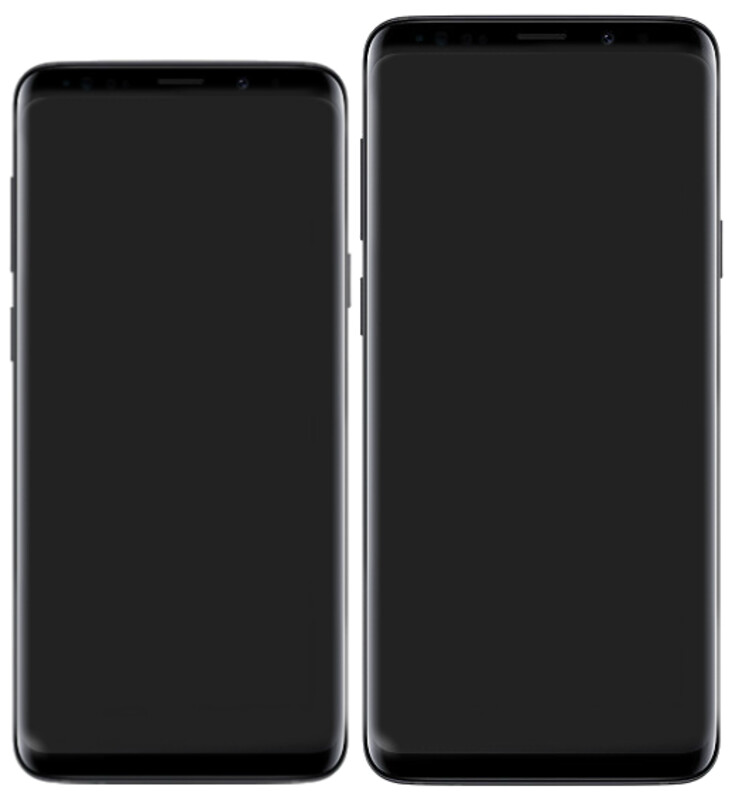
The Samsung Galaxy S10+ arrived in February 2019 as the uncompromising flagship of Samsung’s landmark S10 family. While the S10e argued for accessibility and the standard S10 covered the middle ground, the S10+ made a maximalist case: a 6.4″ QHD+ Dynamic AMOLED Infinity-O display, 4100mAh battery, triple rear cameras with a variable-aperture wide lens, and the 12GB RAM variant for those who wanted to take no prisoners. And underneath all of that hardware, full Samsung DeX support — the same desktop mode platform that debuted on the S8 two years earlier, now meaningfully refined and running on significantly faster silicon.
I’m Yanis, founder of MiraLab. I find the S10+ interesting to write about for a specific reason: it represents the moment the S10 generation’s DeX improvements landed in their most capable form. The S10e had the same DeX feature set but USB 3.1 Gen 1 and 6GB of RAM. The S10 standard was excellent. The S10+ was the version where Samsung’s second-generation DeX had absolutely nothing to apologize for — enough RAM to keep a real multitasking session running, USB 3.1 Gen 2 for faster data transfer alongside DisplayPort video, and the battery capacity to sustain a long working session even while powering an external display.
Samsung DeX on the Galaxy S10+: What the Flagship Treatment Actually Meant
The S10+ runs the same DeX software as the S10e and standard S10, but the hardware ceiling is noticeably higher. Here is what actually mattered in practice:
- USB 3.1 Gen 2 — a meaningful upgrade — Unlike the S10e’s Gen 1 port, the S10+ uses USB 3.1 Gen 2 over USB-C. For DisplayPort Alt Mode output this makes no visual difference — you still drive a 1080p or 1440p external display without issue. Where it matters is simultaneous data transfer: if you are copying large files to an external drive while running DeX through the same cable, Gen 2’s 10Gbps headroom keeps both operations running without bottlenecking either. In a real mobile-only workflow, this edge is occasionally relevant.
- 8GB and 12GB RAM variants — The base S10+ shipped with 8GB RAM; the ceramic 12GB/1TB model went further. In DeX, this translates directly to how many windows you can keep open before Android starts aggressively killing background apps. An S10e with 6GB RAM runs DeX competently. An S10+ with 8 or 12GB runs it with genuine headroom — a browser with fifteen tabs, Slack, a document editor, and a music streaming app all active simultaneously, with no forced restarts.
- Snapdragon 855 / Exynos 9820 with full headroom — The same silicon as the S10e, but combined with more RAM, the S10+ sustains demanding DeX sessions more consistently. Thermal throttling is still possible in long sessions — no phone in 2019 was immune — but the performance envelope is wider.
- Wireless DeX — same story as the S10 generation — The S10+ launched without Wireless DeX but received it via the One UI 2.0 update (Android 10) in early 2020. On a 2019+ Samsung Smart TV, open the DeX app, select the TV from the list, and the desktop appears wirelessly. Pair a Bluetooth keyboard and mouse to the phone and you have a cable-free setup. Latency is real — this is not a session for video editing — but for documents, presentations, or writing it works well enough to use daily.
- The curved display and in-display fingerprint sensor — The S10+’s Infinity-O curved screen is beautiful but creates a slightly different lapdock experience than the S10e’s flat panel. The curved edges mean some lapdock cradles apply pressure unevenly to the glass. The ultrasonic in-display fingerprint sensor remains accessible while the phone is docked, which is a practical advantage over rear-mounted sensors.
For a comparison of the full S10 generation’s DeX capabilities — including where S10+ sits relative to the standard S10 — my Samsung Galaxy S10 DeX guide covers the shared platform in detail. The S10+ adds USB Gen 2 and RAM headroom; everything else is the same story.
How to Use the Galaxy S10+ with a Lapdock
A lapdock is the cleanest way to run DeX on the S10+ — one USB-C cable handles video output, keyboard and trackpad input, and power delivery simultaneously. No separate hub, monitor, or peripherals required.
Option 1: USB-C lapdock with DisplayPort Alt Mode (recommended)
The S10+ supports DisplayPort Alt Mode over USB-C natively. Connect a compatible lapdock and DeX launches automatically. The lapdock’s built-in keyboard and trackpad take over all input, and the phone screen becomes an additional touchpad or media controller. One cable, one device, a complete desktop environment.
The lapdock collection at mobile-only.com lists compatibility per model — which matters because some lapdocks handle the USB-C DisplayPort negotiation the S10+ expects better than others. The S10+’s USB Gen 2 port works with any DisplayPort Alt Mode lapdock, but confirming compatibility before purchase saves an expensive return.
Option 2: USB-C hub or DeX dock for a desk setup
For a stationary workstation, a USB-C hub with HDMI or DisplayPort output connects the S10+ to any monitor. Add a Bluetooth keyboard and mouse and you have a full desktop setup at minimal cost. The Samsung DeX dock selection at mobile-only.com includes options validated with the S10 generation — no compatibility guesswork required.
Option 3: Wireless DeX on a Samsung TV
After the One UI 2.0 update, open the DeX app on the S10+, select a compatible 2019+ Samsung Smart TV from the list, and the desktop appears over Wi-Fi. Pair a Bluetooth keyboard and mouse to the phone. For hotel rooms, meeting rooms, or any space with a compatible Samsung TV already in it, this is the setup that requires you to carry nothing extra at all.
Best DeX Accessories for the Samsung Galaxy S10+
The S10+ pairs well with a focused set of accessories that play to its hardware strengths:
- Lapdock — A USB-C lapdock with DisplayPort Alt Mode support is the foundation of any mobile-only S10+ setup. The S10+ has the RAM and processing power to justify a quality lapdock; this is not the phone to pair with a cheap or poorly-built dock. The mobile-only.com lapdock page has curated options with confirmed S10-series compatibility.
- High-quality USB-C cable — For lapdock use, a USB-C 3.1 Gen 2 or USB4-rated cable matters. Generic charging cables frequently fail the DisplayPort Alt Mode handshake, and with the S10+’s Gen 2 port you want a cable that does not create an artificial bottleneck. This is the accessory most people buy wrong first time.
- Bluetooth keyboard and mouse — For desk and Wireless DeX setups, any standard Bluetooth keyboard and mouse works. No proprietary pairing, no dongle required. A compact 65% or 75% layout travels well.
- MicroSD card — The S10+ supports up to 1TB of microSD storage. In DeX, the Files app exposes that storage exactly like a desktop file manager. For a mobile-only worker, a large microSD card is the equivalent of a local drive — all your project files, offline maps, and downloaded media in one slot.
- USB-C hub with Ethernet — The S10+’s USB Gen 2 port supports USB network adapters. In DeX, a wired Ethernet connection over USB-C is noticeably more stable than Wi-Fi for video calls or large file transfers. On a reliable desk setup, it is worth the extra cable.
For the bigger picture on which phones support desktop modes in 2026 — including where the S10+ sits in the historical timeline — my guide to Android Desktop Mode: Every Phone That Supports It in 2026 covers the full landscape from the S8 era through current flagships.
My Take: Is the Galaxy S10+ Still Worth Using for Samsung DeX in 2026?
Here is where I will be direct with you.
If you already own a Galaxy S10+ — connect it to a lapdock this week. The Snapdragon 855 / Exynos 9820 paired with 8 or 12GB of RAM handles light-to-medium DeX workloads without complaint in 2026: web browsing with multiple tabs, email, Notion, Slack, Google Docs, even light photo editing. You will hit the software ceiling before the hardware ceiling. Android 12 and One UI 4.1 are the final OS versions for the S10+; security patches ended around late 2022. Use it with a VPN on public networks and keep it off services that require current security patches.
If you are shopping second-hand specifically for a DeX phone — the S10+ is a reasonable choice if the price is compelling. The 12GB RAM model in particular still performs impressively in DeX. But I would push you toward a Galaxy S22 or S23 unless the price gap is very significant. More recent phones bring a longer security support timeline, better DeX window management refinements, and improved wireless DeX performance. The S10+ is an excellent phone from 2019. In 2026 it remains capable — but it is running out of runway.
The S10+’s real place in the DeX story: it was the phone that showed what second-generation DeX looked like when Samsung put no hardware constraints on it. The S10e proved DeX could be affordable. The S10+ proved DeX could be genuinely powerful. Samsung’s DeX platform has continued evolving since 2019 — Wireless DeX, improved window management, better app compatibility — and the S10+ carried a meaningful share of the user base through those formative years of the platform’s maturation.
If you are building a mobile-only workflow, the accessories are what close the gap between a capable phone and an actual daily driver. The S10+ is more than capable. The right lapdock or DeX dock is what makes it real.
Take care,
Yanis@MiraLab