I have been running a mobile-only setup for years. The core of it is simple: a Samsung Galaxy connected to a lapdock. No separate PC. No laptop. One device that fits in my pocket and, when I need a full workstation, unfolds into one. Here is exactly how the Samsung DeX lapdock setup works and why I think it replaces a laptop for most people.
What Is a Samsung DeX Lapdock?
A lapdock is a screen-plus-keyboard shell with no processor of its own. It has a display, a keyboard, a trackpad, a battery, and USB-C ports. Nothing else. Your Samsung Galaxy provides all the computing power.
Connect your Galaxy to the lapdock via USB-C, and Samsung DeX activates automatically. You get a full desktop interface – windowed apps, taskbar, drag-and-drop, keyboard shortcuts – powered entirely by your phone. Disconnect, and your phone is back in your pocket with everything still running.
This is not screen mirroring. DeX is a separate desktop environment. Your phone screen can show something different from the lapdock display while you work.
What You Need to Get Started
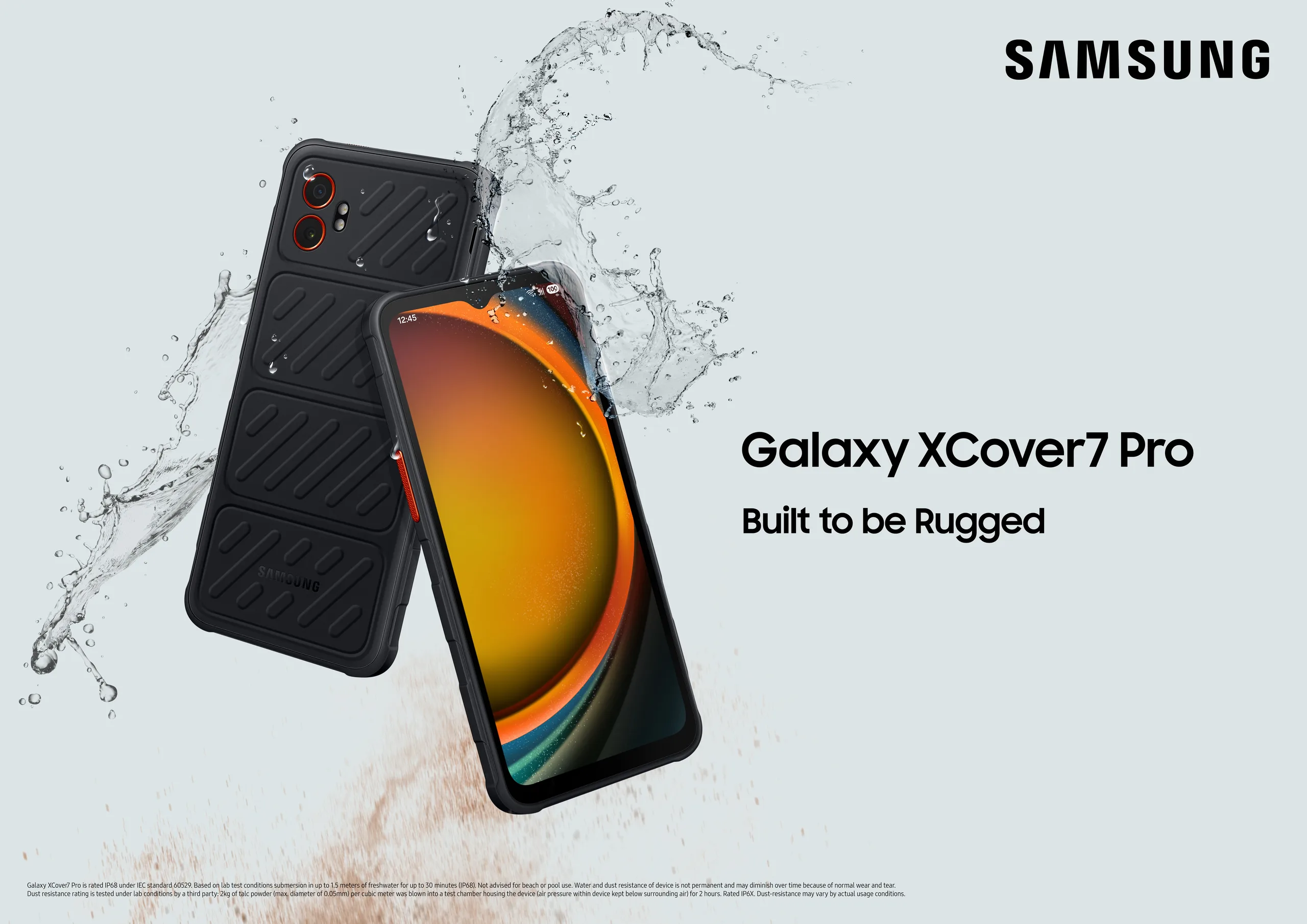
The requirements are minimal. You need a Samsung Galaxy with DeX support – the S series, Z Fold series, or the rugged Galaxy XCover 7 Pro for field use. You need a compatible lapdock. And you need a USB-C cable, though some setups support wireless DeX.
Not every lapdock works equally well. I use a MiraBook, which is purpose-built for Samsung DeX. It opens quickly, the hinge is solid, and it charges your phone while you work. The full range of lapdocks and docking options is at mobile-only.com.
Setting Up Samsung DeX with a Lapdock
The first setup takes about two minutes. Connect the lapdock via USB-C. Your Galaxy will prompt you to start DeX – accept it. The lapdock display switches to the DeX desktop. From there, you adjust the resolution if needed, set your wallpaper, and pin your most-used apps to the taskbar.
After the first time, it is instant. Plug in, and DeX starts automatically. Unplug, and your phone returns to its normal state. No reboots, no loading screens.
For wireless DeX on compatible models, you can mirror to a monitor over Wi-Fi. The lapdock is still the better option for travel – it gives you the keyboard and trackpad built in, plus it charges your device.
What You Can Do in DeX Mode
More than most people expect. Window management works like a proper desktop. You can have a browser in one window, a document editor in another, and a spreadsheet open in a third. Resize and rearrange them freely.
Keyboard shortcuts work. Copy-paste, window switching, screenshot – all the habits from a laptop carry over. Most productivity apps have a desktop-optimized layout in DeX: Samsung Notes, Microsoft 365, Google Workspace, Slack, and more.
For more demanding tasks – video calls, document review, data entry, even light code editing – DeX handles it without complaint. The limiting factor is app availability, not processing power. Today’s flagship Galaxy chips outperform 2019 laptops on most benchmarks.
Why This Replaces a Laptop for Most People
The honest answer is that most laptop use is browsing, email, video calls, and documents. A Galaxy in DeX mode handles all of it. The cases where a laptop is genuinely necessary – heavy video production, certain software that has no mobile equivalent – are rarer than people think.
Enterprise adoption confirms this. The Chicago Police Department runs Samsung DeX across 10,000 officers. UK police forces replaced in-car laptops with smartphones. These organizations evaluated the setup rigorously and chose it because it works.
For individuals – remote workers, consultants, students, frequent travelers – the case is even clearer. One device to charge. One device to secure. One device to insure. And you always have it with you, because it is your phone.
Getting the Most Out of Your Samsung DeX Lapdock Setup
A few things make a real difference day to day. First, keep your Galaxy charged – a lapdock with a built-in battery will charge your phone while you work, but check the spec before buying. Second, invest in a good keyboard feel. Lapdocks vary in key travel and trackpad quality, and you will notice it over a full workday. Third, set up your DeX home screen properly. Pin the five apps you use most. The fewer clicks to get to work, the better.
I also recommend turning off the phone screen while in DeX mode to save battery. The setting is in the DeX menu. Your phone screen becomes a touchpad instead, which is actually useful.
The Mobile-Only Setup Is Ready for You
The Samsung DeX lapdock is not a compromise or a workaround. It is a deliberately designed system that Samsung has been refining for years. The hardware is mature, the software is stable, and the ecosystem keeps growing.
If you have been waiting for the right moment to try going laptop-free, this is it. The setup is simpler than you expect, and the daily experience is better than most people imagine.
Take care,
Yanis@MiraLab