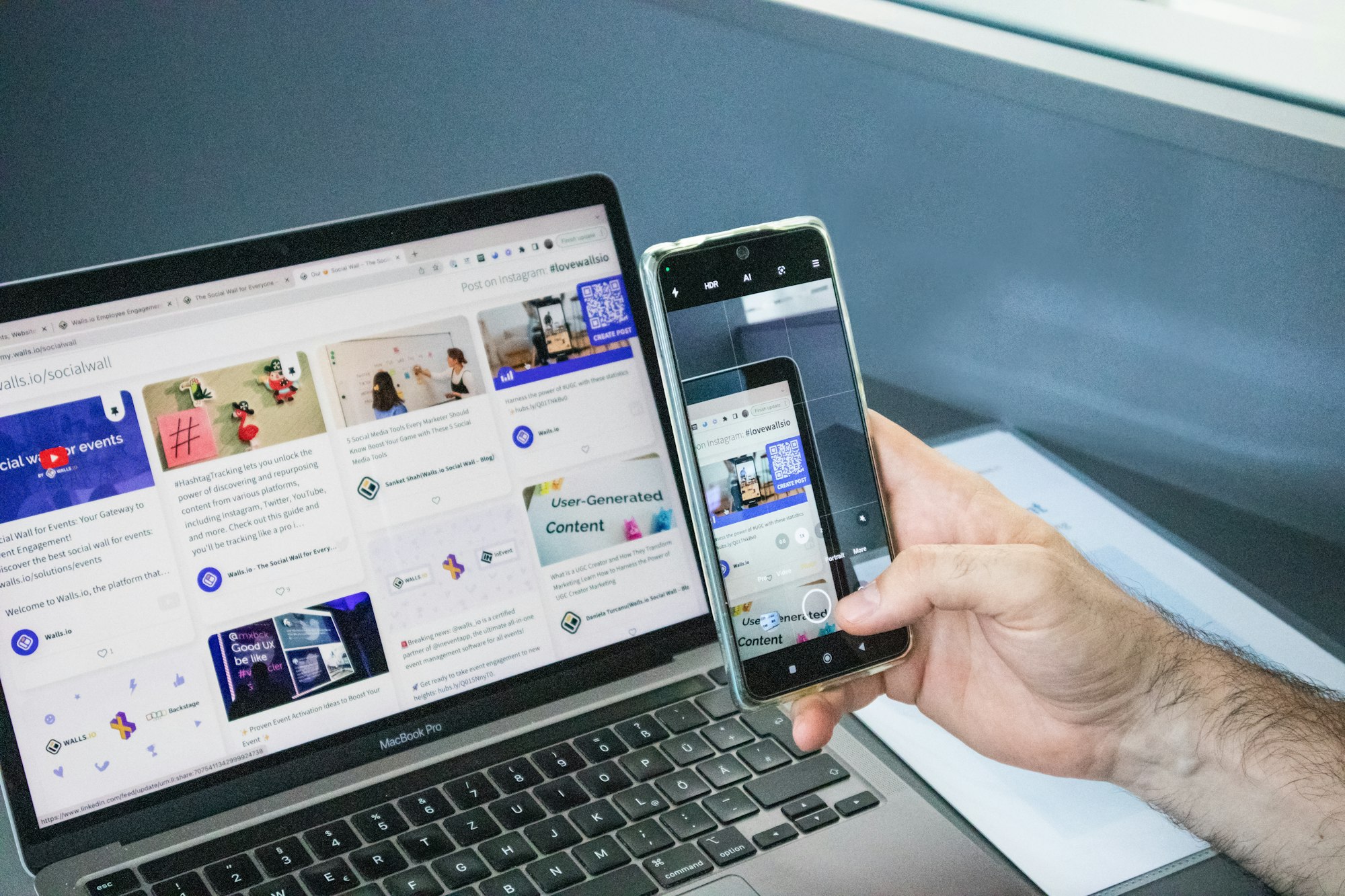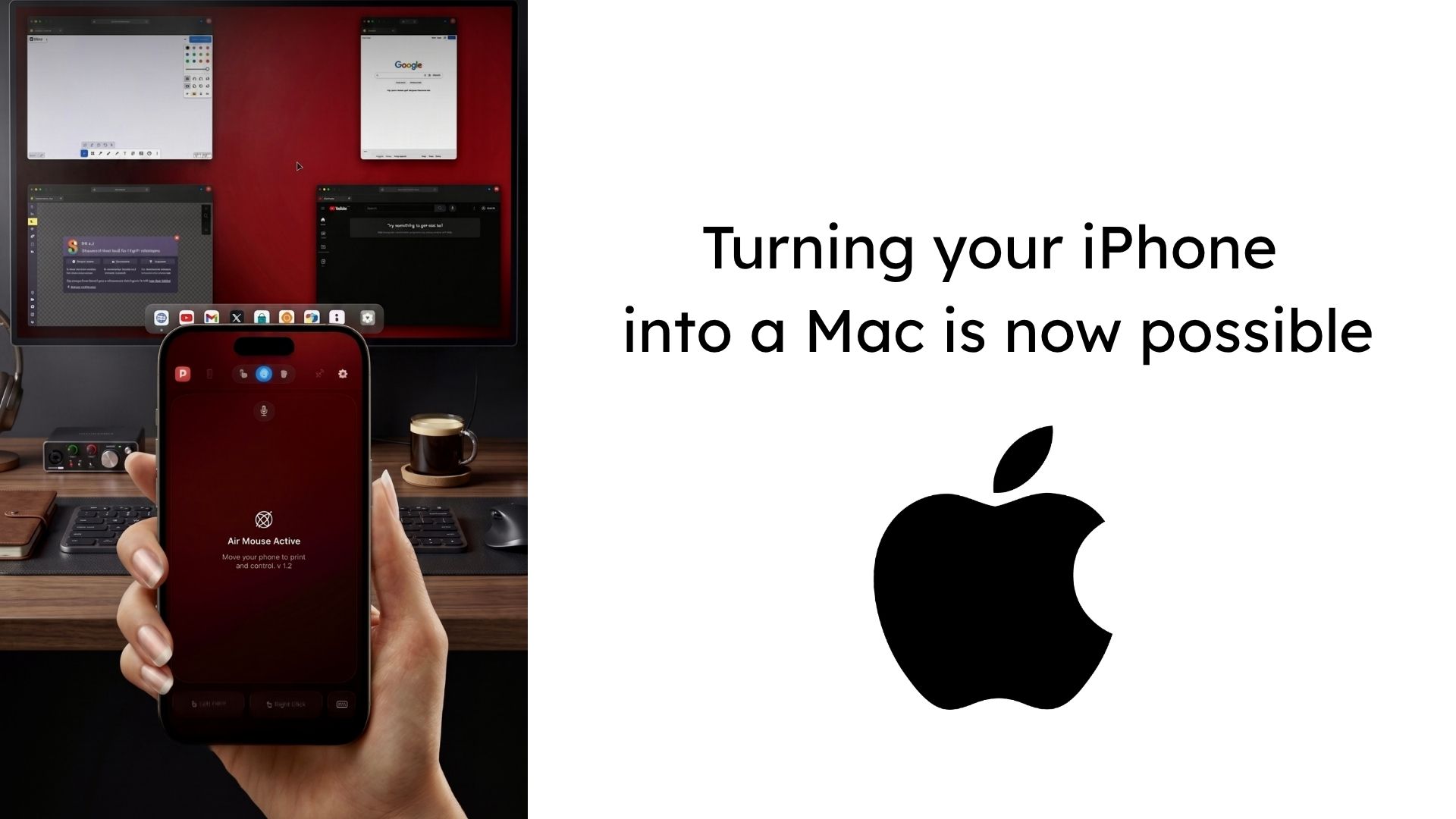
Every week someone asks me: “Yanis, can I actually connect my S25 Ultra to a laptop screen or monitor and use it as a real PC?” The short answer is yes. The longer answer is: it depends on which method you choose — and some are genuinely transformative while others are just a workaround.
I’ve spent time testing every realistic way to connect the S25 Ultra to a laptop, monitor, or TV using Samsung DeX. Here’s what actually works, what the tradeoffs are, and the gear I’d buy if I were starting today.
Why the S25 Ultra Is Built for This
The Samsung Galaxy S25 Ultra ships with Samsung DeX built in. DeX is Samsung’s desktop mode — it transforms your phone’s Android interface into a full windowed environment with resizable apps, a taskbar, and proper mouse and keyboard support. This isn’t a gimmick or an underpowered experiment. On the S25 Ultra’s Snapdragon 8 Elite chipset, DeX is genuinely fast.
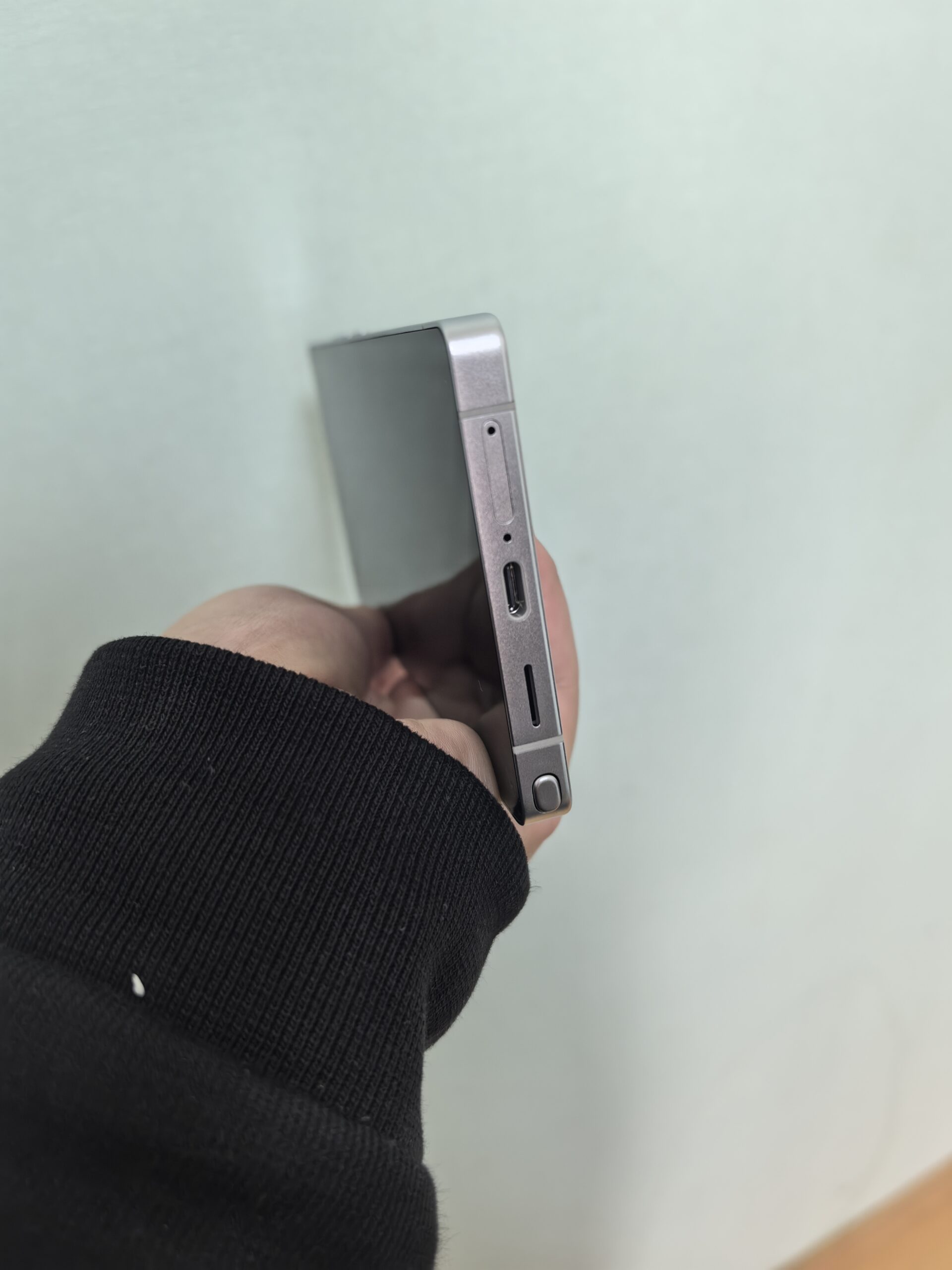
More importantly, the S25 Ultra has full DisplayPort Alt Mode over its USB-C port. That means it can push a video signal natively through USB-C — no wireless streaming, no adapters converting signals back and forth. Just a clean, direct connection. This is the technical foundation that makes every method below possible.
According to Samsung’s official DeX page, the S25 series supports both wired and wireless DeX — a flexibility that makes it one of the most versatile mobile-only computing platforms available today.
Method 1 — USB-C Directly to a Monitor (Zero Friction)
The most straightforward way to connect your S25 Ultra to a screen is a USB-C to DisplayPort cable (or USB-C to HDMI with an active adapter) straight into a monitor or TV. Plug it in and DeX launches automatically.
This works beautifully for a fixed desk setup. You get a crisp external display, full DeX, and if the monitor has USB ports you can chain a keyboard and mouse through it. Setup time: under 10 seconds.
The limitation is that you’re tethered to one screen in one location. And you’ll need to bring or borrow peripherals. For a home office or a desk with a permanent monitor, this is the zero-cost entry point. For mobile work, you need a better option.
One important note: not all USB-C cables carry video signals. You need a cable that explicitly supports DisplayPort Alt Mode or Thunderbolt 3/4. Cheap cables will silently fail — DeX just won’t launch.
Method 2 — Connect the S25 Ultra to a Lapdock (The Mobile-Only Way)
This is the setup I use daily and the one I recommend to anyone serious about replacing their laptop.
A lapdock is a screenless laptop shell with a built-in display, keyboard, trackpad, and battery — it draws all its computing power from your phone. Plug the S25 Ultra in via USB-C and it instantly becomes a laptop. Thin, light, genuinely portable. The S25 Ultra is doing all the processing, so you’re not trading performance for convenience.
What makes this the right answer for mobile-only work is the form factor. A quality lapdock is typically 13 to 14 inches and weighs under 1 kg. You carry it like a laptop, but your phone is the PC. Whether you’re boarding a flight, checking into a hotel, or heading to a client’s office — same device, same setup, same data, everywhere.
I’ve tested the lapdocks available through mobile-only.com’s lapdock collection. They’ve done the curation work — every model listed there has confirmed Samsung DeX compatibility and tested S25 Ultra support. That matters because not every lapdock on the market handles DeX cleanly; some have power delivery issues, others have display scaling problems that make the experience frustrating.
If a fixed desk setup is more your style, the Samsung DeX docks at mobile-only.com are worth a look too. One dock connects your S25 Ultra to a monitor, keyboard, mouse, ethernet, and USB drives simultaneously — desktop docking station, phone edition.
For a deeper look at which specific lapdock models earn a place in this workflow, I’ve broken it all down in my Best Lapdock for Samsung DeX 2026 guide.
Method 3 — Wireless DeX on a Samsung Smart TV
If you have a compatible Samsung Smart TV (2019 or newer with the DeX on TV app), you can launch DeX wirelessly via Wi-Fi Direct. The S25 Ultra streams its DeX interface to the TV at up to 1080p — no cable required.
It’s genuinely convenient for quick presentations or home setups where you want a big screen without routing a cable across the room. The tradeoffs are real though: there’s noticeable input lag versus a wired connection, and you’ll still need a Bluetooth keyboard and mouse. For a focused work session, this is a distant third. For a casual evening productivity burst or walking someone through a presentation on a big screen, it’s surprisingly good.
Which Method Should You Use?
Here’s how I’d frame the decision:
- Fixed desk with a monitor: USB-C cable direct or a DeX dock. Simple, instant, reliable.
- Working on the road: A lapdock is the only real answer. Self-contained, portable, no peripherals to juggle.
- Home or big-screen presentations: Wireless DeX to a Samsung TV. No cables, no setup friction.
For the majority of people trying to replace a laptop with the S25 Ultra, the lapdock setup wins decisively. It’s not a compromise — it’s a laptop with the S25 Ultra as its brain. And once you’ve worked like this for a week, going back to carrying both a phone and a laptop feels absurd.
Getting Started
The S25 Ultra is ready for this today. Samsung DeX on the S25 Ultra is stable, fast, and productivity-ready in ways that weren’t possible even two generations ago. The ecosystem around it — lapdocks, docks, wireless displays — has matured alongside it.
If you’re ready to make the switch, start with the curated lapdock selection at mobile-only.com. Every product there has been picked for real DeX compatibility with the S25 series. No guesswork, no returns.
Take care,
Yanis@MiraLab