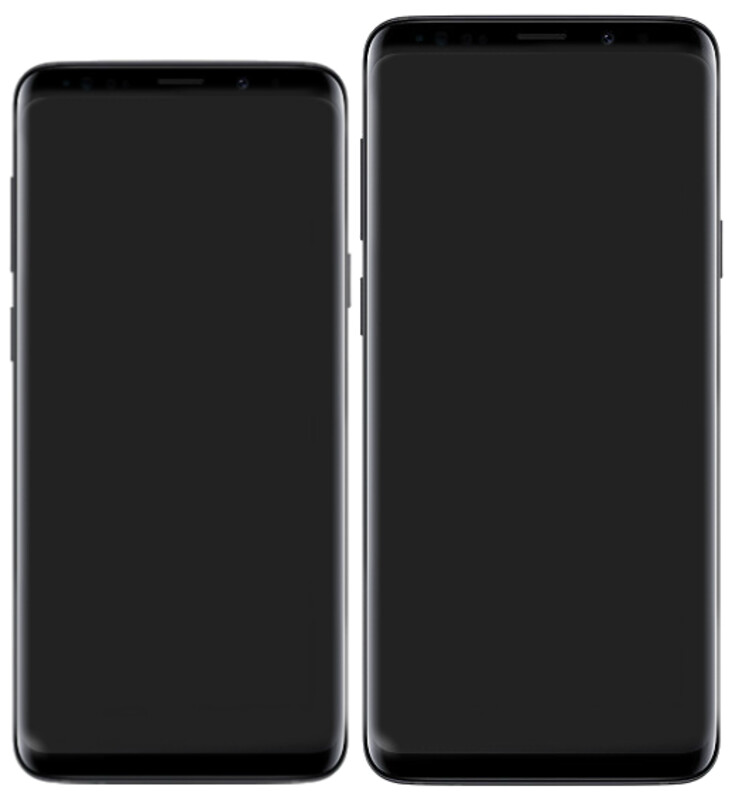
The Samsung Galaxy S9 holds a special place in the mobile-first computing story. Released in early 2018, it was one of the first phones to make Samsung DeX genuinely compelling as a daily productivity tool — and if you still have one in a drawer, you might be surprised how well it holds up in 2026.
I’m Yanis, founder of MiraLab, and I’ve been testing smartphones as desktop replacements since the very first DeX Station shipped. The Galaxy S9 isn’t just nostalgia for me — it’s proof that the idea was right from the very beginning.
Samsung DeX on the Galaxy S9: A Pioneer’s Story
The Samsung Galaxy S9 launched alongside the DeX Pad — a flatter, more refined dock than the original S8 DeX Station, and one that doubled as a wireless charging pad when not in desktop mode. This was Samsung signaling that DeX wasn’t a gimmick: it was a platform.
What the Galaxy S9 brought to Samsung DeX specifically:
- A windowed, resizable app environment on any external display
- Bluetooth keyboard and mouse support out of the box
- The ability to keep using your phone normally as a trackpad while the desktop ran on-screen
- Samsung’s suite of DeX-optimised apps — including Samsung Internet, Samsung Notes, and a full file manager
- Improved performance over the S8 thanks to the Snapdragon 845 (US) or Exynos 9810 (global)
One important note for 2026 buyers: the S9 supports wired DeX only. Wireless DeX didn’t arrive until the Galaxy Note 10 and S10 generation. You’ll need a physical dock, a USB-C to HDMI adapter, or a lapdock to trigger the DeX interface. That’s not a dealbreaker — just something to plan around.
The S9 is also part of a broader story about where Samsung DeX has taken us. I covered a landmark real-world deployment in how the Chicago PD adopted Samsung DeX at scale — early DeX phones like the S9 were part of that first wave that proved the platform was production-ready.
How to Use the Galaxy S9 with a Lapdock
A lapdock — a laptop shell with screen, keyboard, and trackpad that draws everything from your phone — is still the most elegant mobile-only setup I know. For the S9, you have two main approaches:
Option 1: USB-C lapdock (DisplayPort Alt Mode)
The S9 supports DisplayPort Alt Mode over USB-C, which means a compatible lapdock connected via a good USB-C cable should recognise the phone and launch DeX automatically. This is the cleanest solution — one cable handles video, input, and charging.
Check the lapdock selection at mobile-only.com for models that list Samsung DeX compatibility. Some lapdocks are pickier than others about USB-C negotiation, so confirmed S9 compatibility is worth verifying before you buy.
Option 2: DeX Pad / DeX Station + HDMI lapdock
If your lapdock has an HDMI input, you can use the DeX Pad as the intermediary: phone into DeX Pad, HDMI cable from DeX Pad to lapdock screen. You then use the lapdock’s keyboard and trackpad for input. A bit more cable clutter, but it works reliably.
For a desk setup, a USB-C hub with HDMI out, USB-A ports, and power delivery passthrough is the most flexible solution. I’d point you to the USB-C hub lineup at mobile-only.com — they stock options specifically validated for Samsung DeX use, which saves you the trial-and-error of buying generic hubs that don’t trigger DeX mode.
Real-World Performance: What Can the S9 Actually Do in DeX?
The Galaxy S9 packs 4GB of RAM (6GB on the S9+) and a Snapdragon 845 or Exynos 9810. In 2026 terms, that’s entry-level — but for productivity work in DeX, it handles the essentials confidently:
- Email and calendar — buttery smooth
- Web browsing (Samsung Internet in DeX mode, or Chrome) — solid with 8–10 tabs, starts to slow above that
- Google Docs / Sheets — works well, though heavy spreadsheets will test the RAM
- Samsung DeX apps (Notes, Files, My Files) — perfectly optimised for the windowed interface
- Video calls — functional, though front camera quality is obviously 2018-era
Where it struggles: heavy multitasking with multiple resizable windows, large media editing, or running demanding apps side-by-side. The S9 was always a focused, one-or-two-app-at-a-time DeX machine. Lean into that constraint and it rewards you.
Android 10 is the end of the official software road for the S9. Security patches stopped in 2021. That’s the most significant practical limitation in 2026 — not the hardware itself.
Is the Galaxy S9 Still Worth Using for Samsung DeX in 2026?
Here’s my honest take:
If you already own a Galaxy S9 — yes, try DeX. Plug it into a monitor, grab a Bluetooth keyboard, and spend a weekend working from it. You’ll probably be surprised. The experience is dated around the edges (Android 10, older app ecosystem expectations) but the core DeX interface still makes sense.
If you’re buying second-hand specifically for DeX — I’d spend a little more on a Galaxy S22 or S23 instead. You get wireless DeX, Android 13/14 software, and meaningfully better performance. The S9 is a fascinating historical device, but it’s no longer the value pick it once was.
That said, the Galaxy S9 deserves its place in the mobile-only hall of fame. It was part of the generation that convinced me — and a lot of other people — that a smartphone could be your only computer. Samsung’s DeX platform has evolved enormously since 2018, but the S9 is where the dream became real for most people.
If you’re building a mobile-only setup around any Samsung DeX phone — S9 or newer — the accessories matter as much as the phone itself. A good lapdock or USB-C hub makes the difference between a frustrating experiment and a genuine daily driver. Start there.
Take care,
Yanis@MiraLab